I used to think the Claude app was just for chatting. But the Code mode in the Claude Desktop app lets you point it at a folder on your own computer so it can read files there, and even edit them within the permissions you grant. This post records the whole path, from installing the app to a simple test: finding one number in a local Excel file.
✅ Result first
It found 1 cell containing the number 5 in test.xlsx, at Sheet1!A5 (row 5, column A), and 0 cells containing the text "5". The first attempt stopped at the permission prompt; on the second run Claude Code actually read the file and returned the result.
💡 A note on names: Claude Code vs. Code mode in Claude Desktop
Claude Code started as Anthropic's coding tool for the terminal. Today the same Claude Code also runs as a VS Code extension and in the Code tab of the Claude Desktop app. Strictly speaking, what I used here is "Code mode in Claude Desktop," but people commonly call all of these simply "Claude Code," so I use "Claude Code" throughout. The comparison table at the end shows how the three differ.
1. Install Claude Desktop
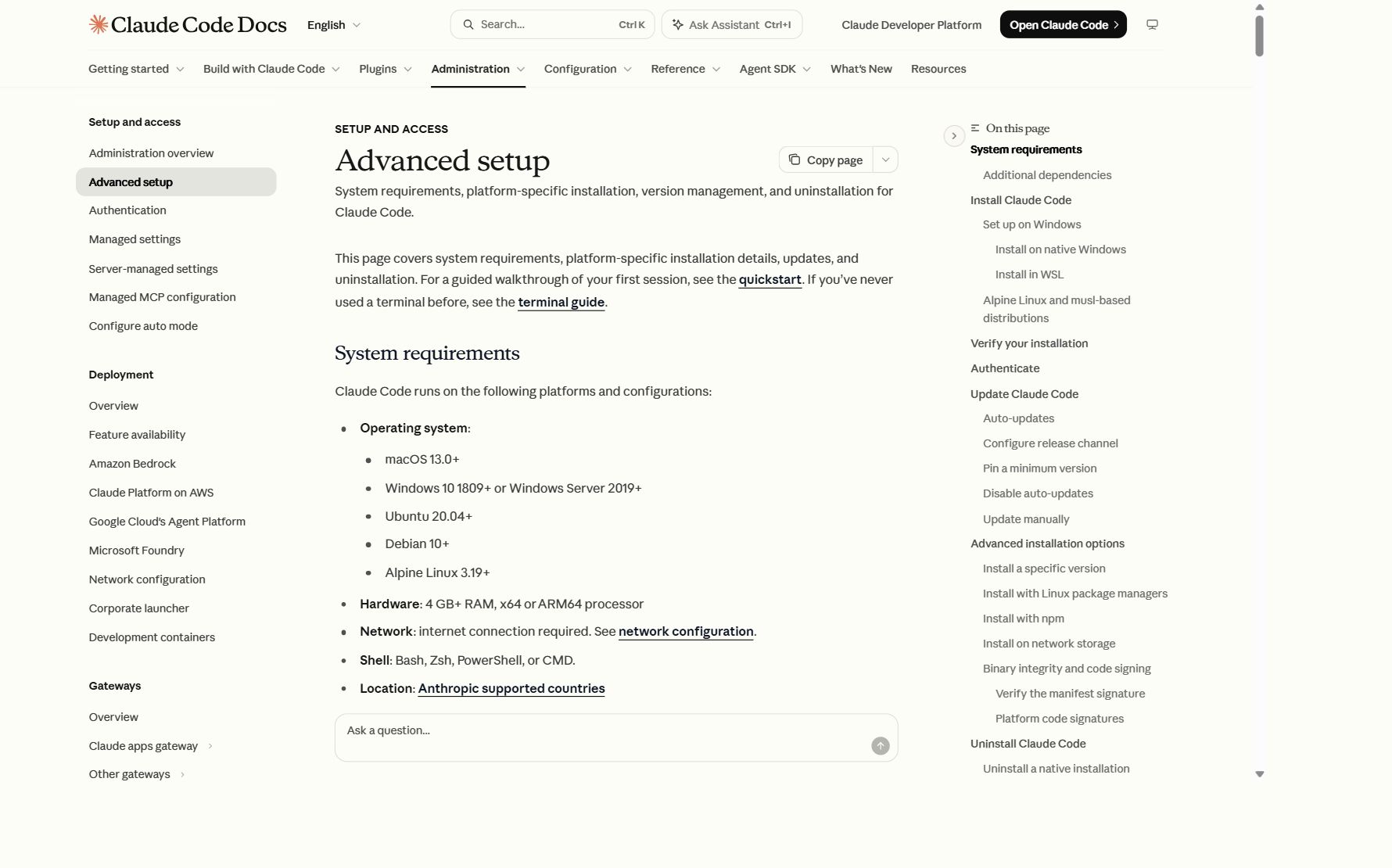
I used the Claude Desktop app for Windows, not the VS Code extension or the terminal install. First I checked the supported environments in the official docs: Windows 10 (1809 or later) and at least 4 GB of RAM.
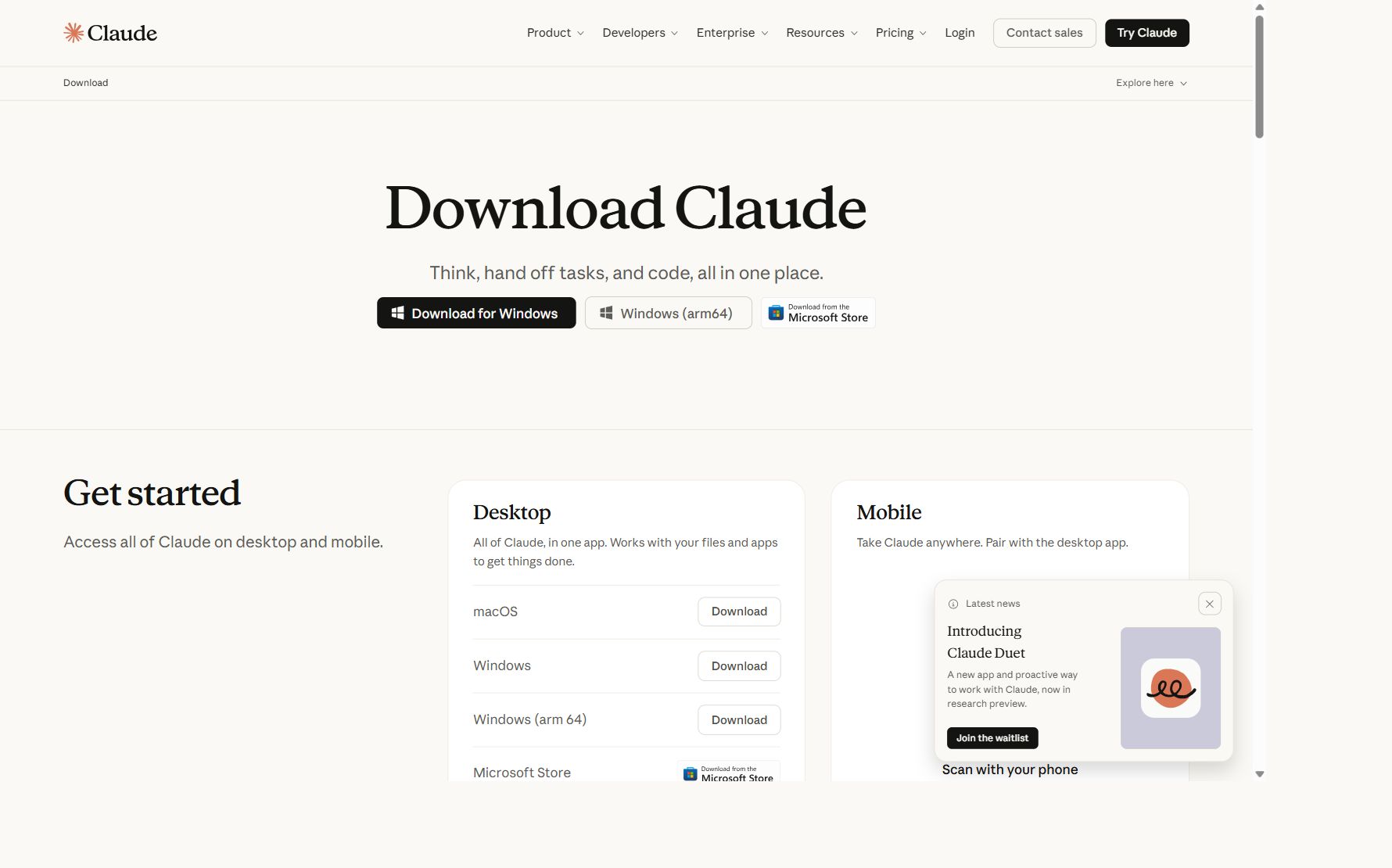
On the download page, click Download for Windows. Pick Windows (arm64) for ARM laptops, or the Microsoft Store if you prefer installing from the store.
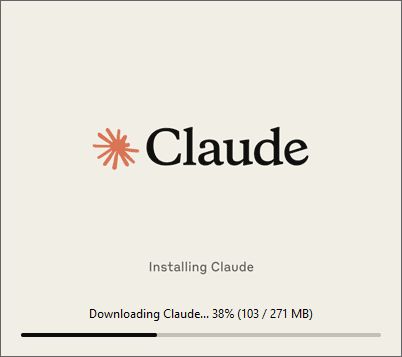
Run the installer and it downloads the components it needs (about 271 MB). My screenshot only caught it in progress.
2. Set up Code mode
In the app I opened the Code tab and set it up like this:
- Environment: This computer (runs on my PC)
- Working folder: a projects/test folder (full path omitted to keep my account name private)
- Permission mode: Manual (I review every command before it runs)
3. Find the number 5 in a local Excel file
I asked where the number 5 appears in the Excel workbook in my working folder. I told it to separate the number 5 from text stored as "5" and made it clear that it must not touch the file. (I wrote the request in Korean; here it is in English.)
Read only the Excel workbook in the selected projects/test working folder.
For every cell whose actual value is the number 5, give the file name, sheet name, cell address, row number and column number.
Treat the text "5" separately from the number 5.
Do not open other files or subfolders, and do not modify, save, rename or delete any file.
4. First attempt: stopped at the permission prompt
Claude Code asked for permission to run commands so it could list the folder's files and check the Python libraries. The first time, I only reviewed the request and didn't allow it, so that attempt ended before any file was read.
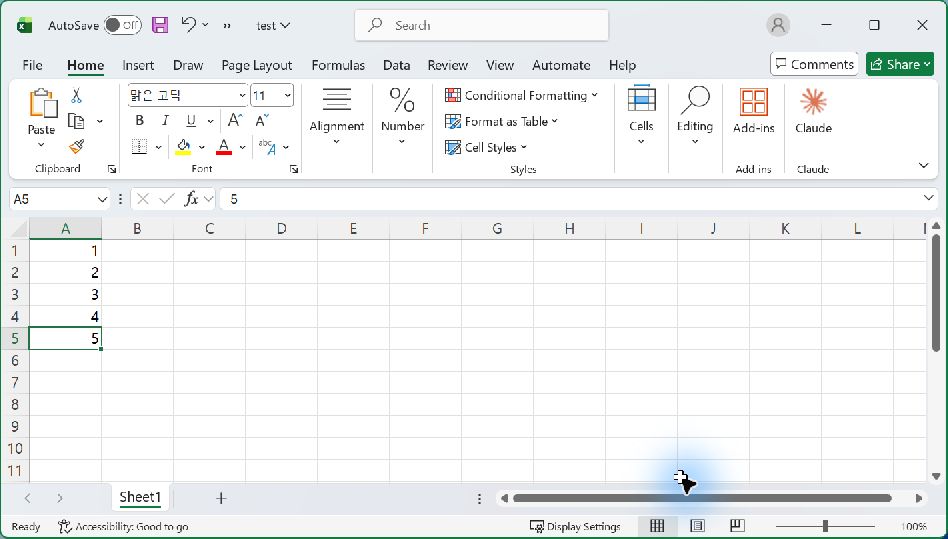
To know the right answer in advance, I opened test.xlsx in Excel myself. Sheet1 has the number 5 in cell A5.
5. Second run: Claude Code's actual result
I ran the same request again and allowed the permission this time. The answer matched what I'd seen in Excel. (The screenshot is Claude Code's original Korean output; the translation is below it.)
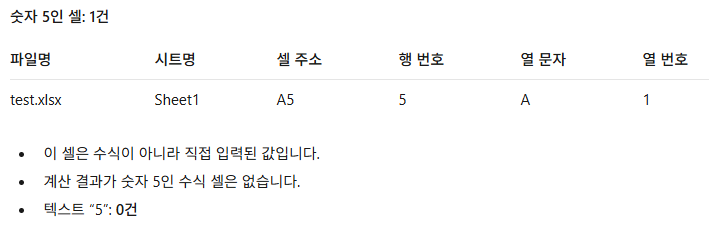
- Cells with the number 5: 1 — test.xlsx / Sheet1 / A5 (row 5, column A = column 1)
- A5 is a typed-in value, not a formula, and no formula cell evaluates to 5.
- Cells with the text "5": 0
Because the request spelled out "number vs. text" and "formula or not," the answer came back split along exactly those lines.
6. Things to remember when handing over local files
- Keep the folder narrow: use a working folder that contains only the files you want to test.
- Be specific about scope: say clearly whether it may only read or may also edit.
- Read permission prompts before allowing: check the path and command shown.
- Leave sensitive files out: don't test with files that contain patient data, personal information or API keys.
This was a simple demo of the file-access flow; it doesn't verify the accuracy of medical information or its safety for clinical use.
7. Comparison: three ways to use Claude Code
| Claude Desktop (Code tab) | VS Code extension | Terminal (CLI) | |
|---|---|---|---|
| Install | Run the app installer | Click Install in VS Code Extensions | Run an install command |
| Interface | Chat-style app with a chosen working folder | Panel next to the editor; changes shown as diffs | Text interface in the terminal |
| Best for | Non-developers; work on files like documents and spreadsheets | People who write code in VS Code | People comfortable with the terminal and automation |
📚 Want it in VS Code? See Getting Started with Claude Code in VS Code for the setup, from installing the extension to signing in, with screenshots.


Comments